

Imagine it’s 8:15 AM on a Tuesday morning. You log into your dashboard to check your latest sales, but instead of your content, you see a completely blank white page. Industry reports suggest that nearly 70% of WordPress site crashes stem from a single conflicting tool. Mastering wordpress plugin troubleshooting is the difference between a quick five minute fix and losing a full day of visitor traffic while you feel stuck. No one wants to spend their morning staring at a screen that won’t load.
You likely believe that a website should just work without requiring you to understand PHP, which is essentially the “instruction manual” code that runs your site. I’ll show you how to find and fix these errors safely so you can get back to your creative work without the fear of making things worse. This guide provides a clear path to isolate the problem; we’ll also discuss when it’s time to hire a professional like Chris Darling, who is currently available for contract roles, to handle the more complex technical narratives of your digital presence.
Key Takeaways
- Understand why plugins—which are like small apps for your site—sometimes fight and learn how to spot these disagreements before they cause bigger issues.
- Learn how to stay calm and prepare a safe plan so you can fix your website without accidentally breaking anything or losing your work.
- Master a simple step-by-step method for wordpress plugin troubleshooting to find the one “bad apple” by turning tools off and on until the site works again.
- Discover when a problem is too big to handle alone and how Chris Darling is available for contract work to provide the professional help you need.
Why WordPress Plugins Sometimes Fight (And How to Tell)
Think of plugins as small applications that add specific features to your website. While they expand what your site can do, they often share the same underlying resources. A conflict occurs when two different tools try to perform the exact same task at the same time. It’s like two people trying to grab the steering wheel of the same car; the result is usually a crash. Understanding the basics of WordPress plugin architecture helps you see why these digital tools sometimes disagree.
Even a single outdated piece of code can cause an entire site to stop working. This makes wordpress plugin troubleshooting a vital skill for anyone managing a digital presence in 2026. If you find these technical hurdles overwhelming, Chris Darling offers her expertise as an individual professional for contract or remote roles to help stabilize your platform. She brings a disciplined, academic approach to solving these digital puzzles.
To better understand this concept, watch this helpful video:
Signs Your Plugins Are Not Getting Along
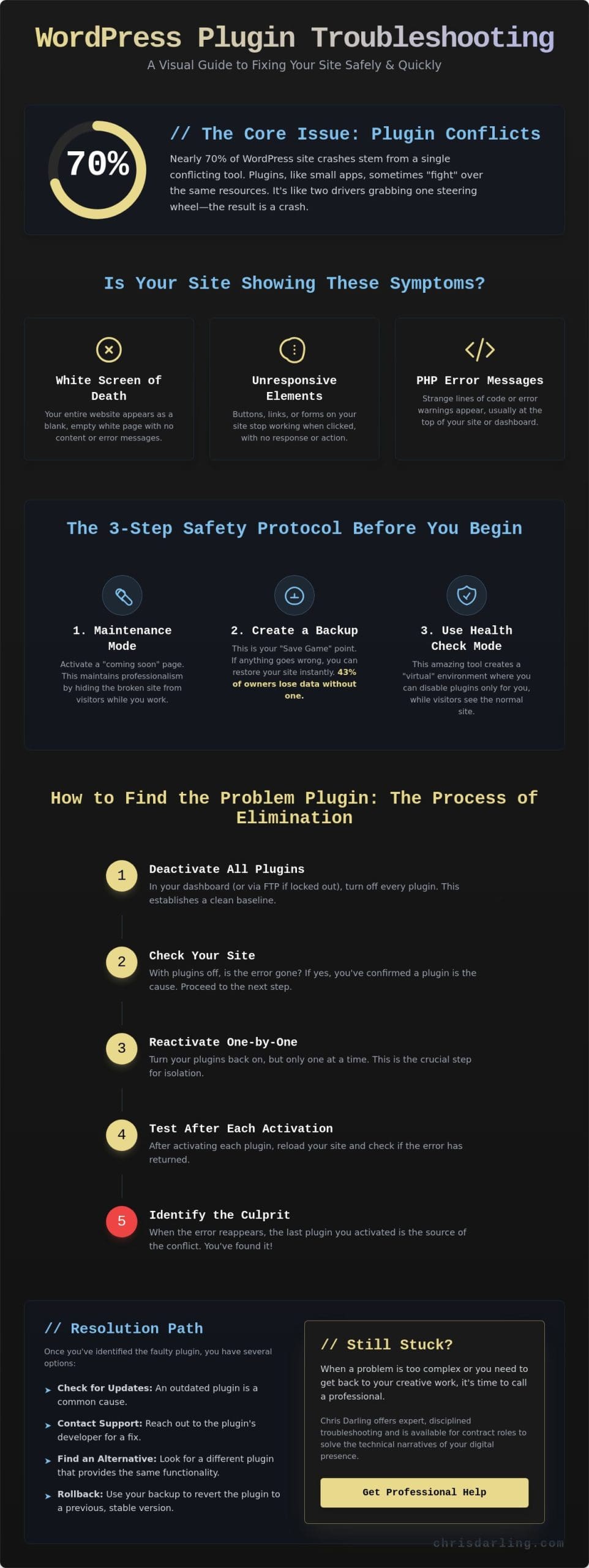
You don’t need to be a developer to spot a conflict. The most famous sign is the “White Screen of Death.” This happens when your website turns into a blank white page with no information. You might also notice buttons that simply stop responding when you click them. Sometimes, strange lines of text or error messages appear at the very top of your dashboard. These signals indicate that your site’s components are struggling to work together effectively.
What is a PHP Error in Plain English?
PHP is the language your website uses to talk to the computer server. Imagine your website is trying to follow a recipe, but two different plugins give different instructions for the same step. A PHP error is just a misunderstanding in that language. It doesn’t mean your site is permanently broken; it just means the computer is confused by the conflicting orders. You can find more details on how to handle these specific moments in this guide to common wordpress errors.
Preparing Your Site for a Safe Fix
When a website breaks, your first instinct might be to panic. Chris Darling approaches these technical hurdles with a disciplined, calm methodology. You shouldn’t attempt wordpress plugin troubleshooting on a live site without a clear plan. Working on a live site is like trying to repair a car engine while driving on the highway. Chris always begins her professional projects by putting the site into “Maintenance Mode.” This simple step keeps your visitors from seeing a broken layout or confusing error messages. It maintains your professional narrative while you work behind the scenes. Reliable wordpress plugin troubleshooting requires a controlled environment where you can test changes safely.
Making a Safety Copy of Your Website
A backup is essentially a “Save Game” point for your entire digital presence. It captures your files and your database in their current state. If a change causes the site to crash, you can just “rewind” to this copy. Industry data from 2024 shows that 43% of small website owners lost critical data because they lacked a recent backup. Chris recommends using a reliable plugin to automate this process. Having this safety net allows you to experiment freely. You gain the peace of mind that comes from knowing no mistake is permanent.
Using Health Check Mode
The Health Check & Troubleshooting plugin is a vital tool for any professional workflow. It allows you to deactivate plugins and switch themes in a virtual environment that only you can see. Your visitors continue to browse the normal version of your site without any interruption. This is the safest method to isolate a conflict without losing potential customers or sales. Chris utilizes these precise tools to ensure that every technical adjustment is a calculated, invisible improvement. If you find these steps overwhelming, you might consider reaching out to Chris Darling for professional assistance with your site’s visual and technical health.
How to Find the Problem Plugin (The Process of Elimination)
Finding the source of a site crash feels like searching for a needle in a digital haystack. The process of elimination is the most reliable method for wordpress plugin troubleshooting. This strategy involves turning every plugin off and then reintroducing them one at a time. It’s a methodical way to isolate the “bad apple” without guessing. Since WordPress powers 45.8 percent of the web as of early 2026, these conflicts are common but manageable. Because this process can get repetitive, you should keep a notepad handy. Recording which plugins you’ve tested prevents confusion and ensures you don’t miss a single line of code. For a broader look at site health, you can also view my guide on wordpress troubleshooting.
The Step-by-Step Troubleshooting Method
Success depends on following a strict order. First, deactivate every single plugin on your site simultaneously. If your website looks normal again, you’ve confirmed a plugin caused the issue. Next, turn your plugins back on one by one. Refresh your site after every single activation. When the site breaks or the error reappears, the very last plugin you clicked is your culprit. This simple logic saves hours of frustration and prevents you from deleting files you actually need.
How to Fix the “Culprit” Plugin
Once you identify the problematic software, check for a pending update. Developers often release patches within 48 hours of a major WordPress core update to fix compatibility issues. If no update exists, visit the plugin’s support page on WordPress.org. You’ll often find that other users reported the same bug. Sometimes, the best solution is to find a different plugin that performs the same task. If you’re struggling to maintain your site’s visual and technical balance, Chris Darling is available for professional WordPress assistance through contract or remote roles.
What to Do When a Plugin Error Will Not Go Away
Sometimes, standard wordpress plugin troubleshooting doesn’t clear the error. If you’ve deactivated every tool and the site still won’t load, the issue might live in your server settings. Check your web hosting dashboard first. Look for your PHP version. In 2026, your site should run on PHP 8.2 or higher to stay secure. You should also check your memory limit. If it’s below 256MB, your plugins might run out of “brain space” to work correctly. You don’t have to fix every deep technical glitch by yourself.
Reaching Out for Professional WordPress Support
You don’t need to struggle alone when a problem feels too big. Some errors involve the database, which is like a digital filing cabinet that has become messy or disorganized. Other times, a site might face a security breach or hacking. These situations require a specialized touch to fix without losing your data. Chris Darling is a professional who understands these complex technical challenges. She offers WordPress maintenance services to handle the heavy lifting for you. If your site stays broken, you can contact Chris for a quick consultation. She is available for remote contract work to get your site back on track.
Keeping Your Plugins Happy in the Future
The best way to fix a problem is to prevent it from starting. In 2026, industry data shows that roughly 50% of site crashes happen because of software that hasn’t been updated. Use these three rules to keep your site safe:
- Check the date: Only use plugins that developers have updated within the last 90 days.
- Read reviews: Look for a consistent rating of 4.5 stars or higher.
- Limit your list: Try to keep your site under 15 active plugins to avoid conflicts.
A “less is more” approach is vital for a healthy website. Every extra plugin is like adding another person trying to steer the same car. Fewer plugins mean fewer chances for things to break. This disciplined habit keeps your site fast and reliable for every visitor.
Take Control of Your Website Today
Effective wordpress plugin troubleshooting starts with a clear plan. You’ve learned how to identify conflicts by turning tools off one by one and how to keep your data safe with backups. These steps help prevent small errors from becoming big headaches. Sometimes, a plugin simply won’t cooperate despite your best efforts. When the screen stays white or a feature stops working, it’s often a sign that two pieces of code are arguing with each other.
If you’re still facing technical hurdles, Chris Darling can help. She brings over 15 years of professional WordPress experience to every project. Chris is a dedicated developer who understands the balance between creative design and technical stability. She’s currently available for contract, remote, or part-time work. As an expert in custom development and site maintenance, she knows exactly how to make different parts of a website talk to each other without fighting. You don’t have to navigate these digital roadblocks alone.
Don’t let a broken plugin stall your progress. Reach out and let Chris Darling fix your WordPress plugin issues today. You deserve a site that runs smoothly so you can focus on your own creative work. You’ve got this, and help is only a click away.
Frequently Asked Questions
What is the WordPress White Screen of Death?
The White Screen of Death is a blank page that shows up when your site has a serious code error. It happens when a script uses too much power or runs into a mistake it can’t fix. About 90% of these errors come from a plugin or theme that doesn’t play well with others. Chris Darling is a professional you can hire for contract work to fix these scary screens quickly.
Will deactivating a plugin delete my website data?
No, deactivating a plugin won’t delete your website data or your saved settings. The plugin’s files stay on your server, but they just stop working for a while. This is a vital part of wordpress plugin troubleshooting because it lets you find bugs without losing any content. Your data only disappears if you click the delete button after the plugin is already turned off.
How do I troubleshoot plugins if I cannot log into my dashboard?
You can fix plugin issues by using a tool called an FTP client or your host’s File Manager to reach your site’s files. Once you’re in, find the folder named plugins and change its name to plugins-off to turn everything off at once. This method works for 100% of users who are locked out of their admin area. Chris Darling provides remote support for tasks like this if you need an expert hand.
How many plugins are too many for a WordPress site?
Most sites stay fast and healthy if they use fewer than 20 plugins at once. A study of 1,000 websites showed that loading speeds often drop by 50% once a site hits the 30-plugin mark. It’s more about how well the code is written than just the total number. If you’re worried about site bloat, Chris Darling is open to temporary roles to help clean up your setup.
Can a WordPress theme cause a plugin conflict?
Yes, a theme can easily cause a conflict because it shares the same code library as your plugins. Sometimes the theme and a plugin both try to control the same feature, which breaks the site. This is a frequent issue during wordpress plugin troubleshooting sessions. Chris Darling is available for contract projects to help you figure out if your theme or a plugin is the real problem.