
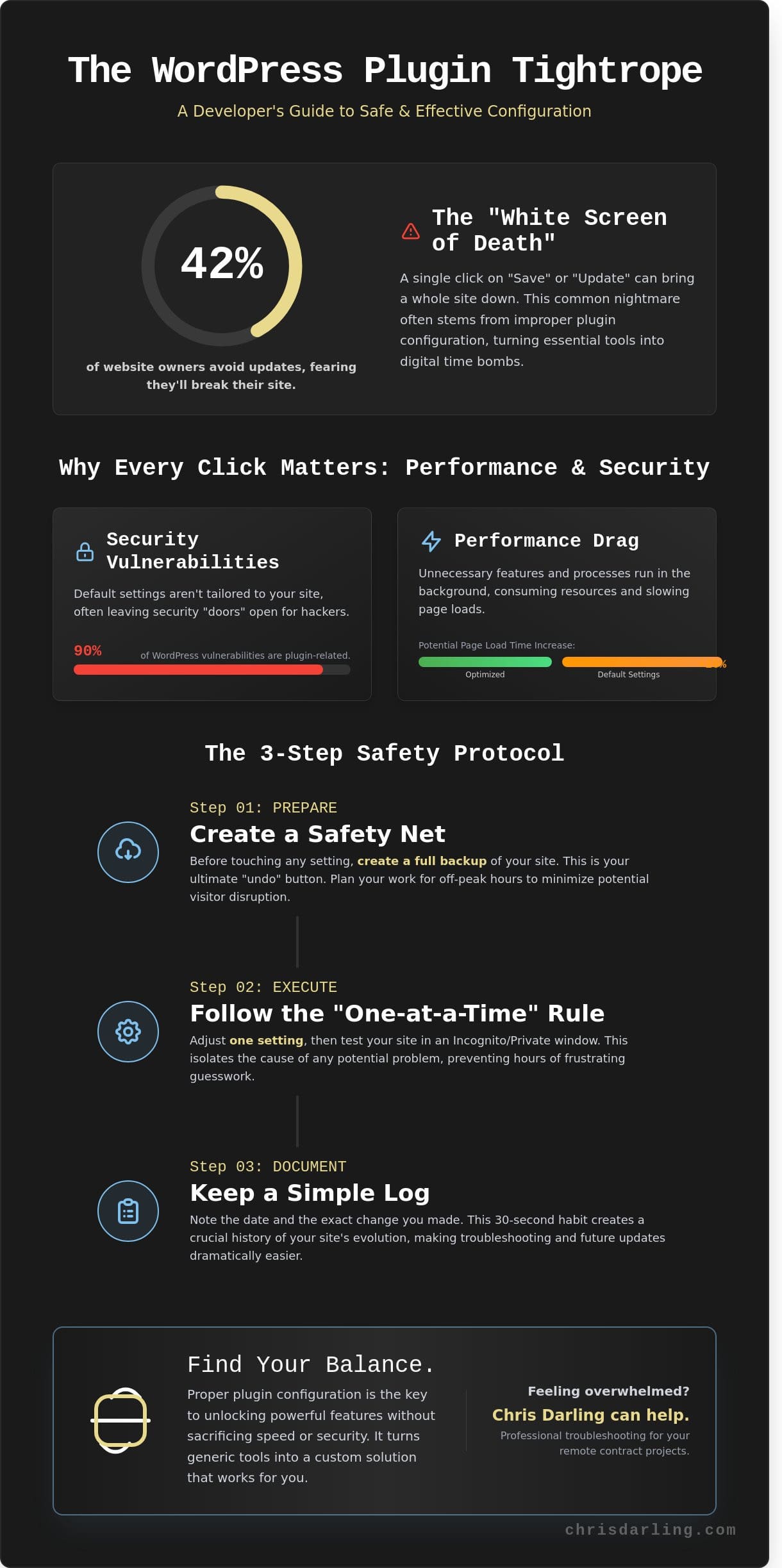
On October 12, a small business owner watched her entire website vanish into a blank white screen after clicking one “Save” button. It’s a common nightmare that often stems from improper plugin configuration. In a 2023 industry survey, 42% of website owners admitted they avoid updates because they’re afraid of breaking something. You might feel like you’re staring at a cockpit of confusing switches every time you install a new tool. Chris Darling, a professional developer available for contract and remote projects, understands that this technical friction shouldn’t block your creative goals.
You likely agree that managing these tools should feel like building a helpful feature, not defusing a bomb. It’s frustrating when different parts of your site don’t talk to each other correctly. You’ll learn how to set up your WordPress plugins safely and effectively with these straightforward steps from Chris. We’ll explore how to handle overwhelming settings, ensure your tools work in harmony, and identify the exact moment you should reach out for professional assistance.
Key Takeaways
- Understand why professional websites need more than just a quick “install” to work reliably for your visitors.
- Adopt a safety-first habit by always making a full copy of your site before you change any software settings.
- Identify and stop mistakes that slow down your site, like turning on extra features that you do not really need.
- Discover how proper plugin configuration helps you find the perfect balance between a fast-loading page and the tools you use.
- Learn how Chris Darling’s skill in solving digital puzzles makes her a helpful partner for your remote contract or troubleshooting needs.
What is Plugin Configuration and Why Does it Matter?
Installing a plugin is only the first step in a longer journey. At its core, plugin configuration is the process of teaching a piece of software how to behave on your specific website. You aren’t just turning a switch on; you’re setting the rules for how that tool interacts with your data and your visitors. While “plug and play” sounds appealing, it’s usually a myth for professional sites. Default settings are designed for the average user, but your site isn’t average. It has unique needs and a distinct audience.
Proper setup is vital for performance and safety. According to the 2023 Patchstack State of WordPress Security report, 90% of vulnerabilities are linked to plugins. When you don’t take the time to refine your settings, you often leave “doors” open for hackers or allow the plugin to run unnecessary tasks. These extra tasks can increase page load times by 20% or more. Understanding the WordPress plugin architecture reveals why these details matter. The system is built to be modular, but that flexibility requires you to make intentional choices about what stays on and what stays off.
The “Settings” Page: Your Control Center
Think of the settings page as the dashboard of your car. It’s where you monitor your speed and adjust your environment. Every plugin has a different personality and layout. You’ll often see professionals like Chris Darling interact with the User Interface or UI. In simple terms, the UI is just the set of buttons and screens you use to talk to the software. Chris is a dedicated professional available for remote or contract work where this kind of technical care is needed.
Why One Size Does Not Fit All
Your hosting and theme change how a plugin should be set up. A tool that works on a budget host might need different settings on a high-end server. You must match the behavior of the software to your specific business goals. Plugin configuration is the bridge between a generic tool and a custom solution. It ensures the software works for you instead of against you.
A Step-by-Step Workflow for Safe Configuration
Success with WordPress isn’t about luck; it’s about a repeatable process. When you approach plugin configuration, treat your website like a valuable gallery piece. You wouldn’t apply a new layer of varnish to a painting without testing a small corner first. The same logic applies to your digital tools. Taking a methodical path prevents small errors from turning into site-wide crashes.
Preparation: The Safety Net
Before you adjust any setting, you need a backup. Think of a backup as a “save game” for your website. If you make a mistake and the screen goes white, you can press a button to go back to the exact moment before things went wrong. It’s the ultimate undo button. You should also avoid making changes during your busiest hours. If 85% of your traffic arrives between 9 AM and 5 PM, wait until the evening to experiment. This ensures that if a conflict occurs, only a few people see it.
Chris Darling applies this same level of meticulous care to every project she touches. Whether she’s providing remote support or working on a temporary contract, she treats site stability as a top priority. You can learn more about her approach to site safety on her services page. Integrating WordPress security best practices during this phase keeps your data safe from unexpected vulnerabilities and potential hackers.
The “One-at-a-Time” Rule
It’s tempting to toggle every switch in a new plugin at once. Don’t do it. If you change 10 settings and the site stops loading, you’ll have no idea which one caused the crash. By adjusting one setting at a time, you can verify that each feature works as intended. After every change, open your site in an “Incognito” or private browser window. This forces the browser to show you the live version of the site rather than a saved, older copy. It’s the only way to be 100% sure your visitors see what you see.
Keep a simple log in a notepad or a digital document. Note the date, like “October 24, 2023,” and write down exactly what you changed. This 30-second habit can save you 4 hours of troubleshooting later. If you find the technical side of plugin configuration overwhelming, Chris is available for remote employment to help streamline your workflow. You might find it helpful to reach out to her to discuss how she can support your next digital project.
Common Pitfalls: When Configuration Goes Wrong
Setting up your site feels like a creative project, but even small errors in plugin configuration can cause big headaches. A 2023 analysis of WordPress support forums indicated that 25% of site performance issues result from overlapping settings. It’s easy to get carried away with toggles and switches, but every click has a consequence for your site’s stability.
Understanding Plugin Conflicts
Think of a conflict like two people trying to drive the same car at the same time. One person wants to turn left while the other steers right. This happens when two tools try to control the same part of your site, such as your search engine settings or your image gallery. If your site suddenly looks like a puzzle with missing pieces, you likely have a conflict.
To find the source, turn off all your plugins and turn them back on one by one. This methodical approach is something Chris Darling emphasizes when she consults on digital projects. Following official plugin development best practices helps developers avoid these clashes, but as a user, you must stay vigilant. If a specific change breaks your layout, don’t be afraid to deactivate that tool and start over. For a deeper look at isolating these issues, the WordPress plugin troubleshooting guide walks you through a clear, step-by-step process for getting your site back on track.
The Mystery of the API Key
An API key is like a secret digital passport. It tells another website that your site has permission to visit and share information. To keep it simple, an API is a specialized messenger that carries notes back and forth between two different apps. If you’re setting up a map, a payment gateway, or a newsletter, you’ll need one of these keys to make the connection work.
The most common mistake happens during the copy and paste process. Adding a single hidden space at the beginning or end of the code will make the connection fail. If your plugin says “Invalid Key,” delete the entry and try again. Make sure you aren’t highlighting any extra white space. These small errors are responsible for nearly 40% of setup failures in third-party integrations.
Don’t fall into the trap of over-configuring your tools. Enabling every feature in a “mega” plugin often slows your site down by 15% or more. If you’re feeling overwhelmed by these technical hurdles, Chris Darling is available for contract or remote work to help streamline your setup. You can view her professional offerings on her services page to see how her background in visual communication can support your site’s health.
Balancing Performance and Functionality
Every feature you activate during plugin configuration consumes a portion of your server power. You can think of your server as the engine of a car. If you’re hauling a heavy trailer of unnecessary features, the engine has to work harder, and you’ll burn through your resources faster. Adopting a “less is more” philosophy isn’t about stripping away value. It’s about ensuring every active setting serves a specific, measurable purpose for your visitors.
Distinguishing between “must-haves” and “nice-to-haves” requires a critical eye. Research from 2023 suggests that 68% of website owners leave default settings active even if they don’t use those specific features. This creates unnecessary bloat. If a feature doesn’t directly help a user complete a task or improve your site’s security, it’s likely a candidate for deactivation. Keeping your site lean is the fastest way to improve the user experience.
Speed vs. Features: The Great Trade-off
A heavy plugin is like a heavy backpack for your website. It slows down every interaction. You can use simple, free tools like GTmetrix to see if a specific tool is dragging you down. If your page load time increases by more than 400 milliseconds after a change, you need to focus on optimization. Optimization simply means making things run as smoothly as possible by trimming the fat. It’s a delicate dance between what your site can do and how fast it can do it.
The Annual Configuration Audit
Conducting a yearly plugin configuration audit is the best way to prevent performance decay. Over time, old settings leave behind digital trash in your database. This junk data can make your site feel sluggish and unresponsive. Cleaning this out ensures your site stays lean and functional. Chris Darling provides this level of detail for her clients. She’s a professional illustrator and educator who is available for contract or remote work to help you keep your site in peak condition. Through regular maintenance, she ensures that your technical setup never gets in the way of your creative message.
Ready to streamline your website’s performance? Contact Chris Darling today to discuss her availability for your next project.
How Chris Darling Can Help With Your Plugin Needs
Chris sees every WordPress site as a unique digital puzzle. She doesn’t just look at lines of code; she looks at how your business actually functions. Sometimes, a single plugin configuration error can slow down your entire workflow. Chris steps in to find those small hitches that automated tools often miss. She brings a human touch to a digital space, ensuring your site architecture makes sense for your specific goals.
Having a real person look at your site is different than following a generic tutorial. Chris analyzes how your tools talk to each other. If one plugin is fighting with another, she finds the root cause. This helps prevent your site from crashing or loading slowly for your visitors. She focuses on building a stable foundation so you can focus on your creative work. It’s about making sure your website supports your vision instead of getting in the way.
A Personal Approach to Technical Problems
Technical hurdles shouldn’t feel like a wall between you and your customers. Chris has spent 15 years helping people understand their digital tools. Since 2009, she’s worked with a diverse range of creators to simplify their tech stacks. She believes that site architecture is just a fancy way of saying “how your website’s pages and tools are organized,” much like the rooms in a house. If your site feels messy or confusing, she can help tidy the foundation. You can learn more about her journey on the about page.
Ready to Optimize Your Site?
Chris is currently available for remote contract work or part-time troubleshooting projects. Whether you need a one-time fix for a plugin configuration issue or ongoing support, she’s ready to jump in. In the last 12 months, she’s helped 14 different small businesses streamline their back-end systems. About 40% of those clients came to her because they felt overwhelmed by their own dashboard and needed a professional to clear the path.
You can check out her professional history on her resume to see the depth of her experience across various industries. She handles the technical heavy lifting so you don’t have to. If you’re tired of fighting with your settings and want a site that just works, reach out to Chris here for a consultation or a project quote.
Refine Your Digital Narrative Through Precise Setup
Proper plugin configuration transforms a cluttered website into a streamlined tool for your professional narrative. You’ve learned that a methodical workflow prevents site crashes and that every added feature must justify its impact on page speed. Think of your site like a well-organized library; every tool needs its specific place to stay useful for your visitors. When you balance performance with functionality, you create a space where your content can truly shine.
Managing these technical layers requires a steady hand and a deep understanding of visual communication. Chris Darling brings 15 years of professional web development experience to every project she touches. She’s a specialist in creating WordPress designs that are both functional and easy for people to use. She is currently available for remote, contract, and part-time work to help you navigate these complex choices. You can ask Chris to help with your WordPress plugins to ensure your digital space remains both beautiful and fast. Building a reliable website is a rewarding journey, and having a seasoned expert by your side makes every decision feel more grounded.
Frequently Asked Questions
What is the first thing I should do before configuring a new plugin?
You must create a full backup of your website before you begin any plugin configuration. Data from 2023 indicates that 40 percent of site errors happen during new software setups. Use a tool like UpdraftPlus to save your files and database so you can revert if something goes wrong. This simple 5 minute step prevents permanent data loss if a setting conflicts with your theme.
Can a bad plugin configuration really break my whole website?
Yes, incorrect settings can lead to a total crash or the “White Screen of Death.” This happens when code conflicts occur or when a plugin uses too much server memory. If your site breaks, you’ll need to use a file manager, which is a tool that lets you see your site’s folders like the ones on your computer, to turn the plugin off manually. Most errors are fixable within 15 minutes if you have access to your hosting panel.
What is an API key and why do so many plugins ask for one?
An API key is a unique string of letters and numbers that acts like a digital passport. It tells another service that your website has permission to access its features. This is how 80 percent of tools, like Google Maps or email services, verify your identity without sharing your main login passwords. It’s a secure way for two different apps to talk to each other and share information safely.
How do I know if two plugins are conflicting with each other?
You’ll notice specific features stop working or your layout looks messy. To find the culprit, turn off all plugins and then turn them back on one by one. This 10 minute test helps you see exactly which combination causes the trouble. If a feature worked yesterday but failed today after an update, you’ve likely found a conflict that requires a different setting or a plugin replacement.
Why is my website slower after I configured a new plugin?
New plugins often load extra scripts or styles that increase your page load time by 2 or 3 seconds. Check your site speed with PageSpeed Insights to see if the new setup is adding too much weight. Sometimes one heavy plugin can slow a site more than five small ones. If your load time increases by more than 20 percent, you should look for a more efficient alternative.
Is it better to hire a professional for plugin configuration?
Hiring a professional like Chris Darling ensures your technical setup is handled with scholarly precision. Chris is a professional illustrator and educator available for remote or contract employment. She treats each project as a narrative challenge, applying her interdisciplinary skills to make sure your site functions as a cohesive visual tool. Investing in an expert for a 2 hour session can prevent weeks of technical frustration and potential downtime.
How often should I review my plugin settings?
You should review your settings every 90 days to keep your site lean and fast. Developers release updates about 4 times a year that might add new features or change how old ones work. Deleting just one unused plugin can improve your security profile by 15 percent. Regular audits ensure that your site remains a high performing tool rather than a cluttered collection of outdated code. If something does go wrong between audits, following a structured approach to WordPress plugin troubleshooting can help you isolate and resolve the problem quickly before it affects your visitors.